
Primibia is Tibia 7.72 in your browser. On a computer it plays like the classic client with a few modern additions; on a phone or tablet you get touch controls built for the small screen. This page shows both.
Phone & tablet
Everything below works on any phone or tablet browser. The screenshots are from an iPhone-sized screen held upright; turned on its side the same controls sit in a wider layout.
On this page
The screen
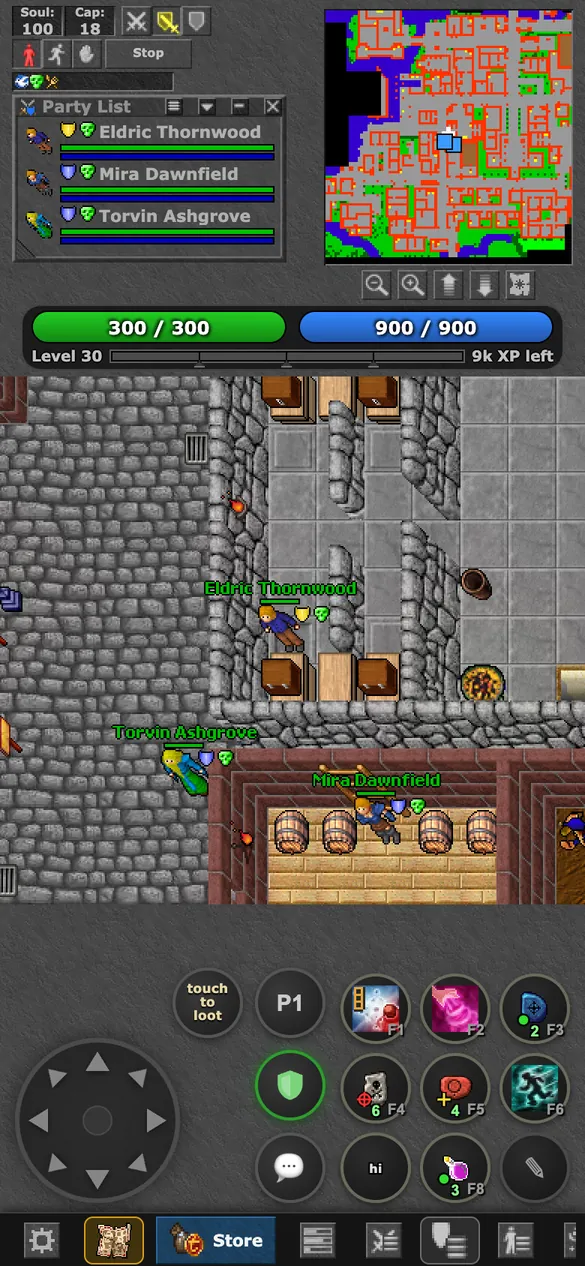
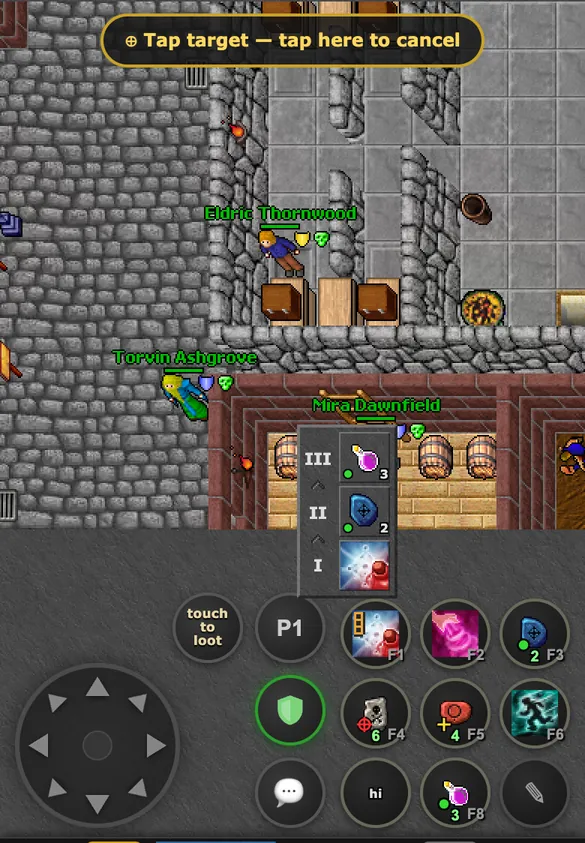
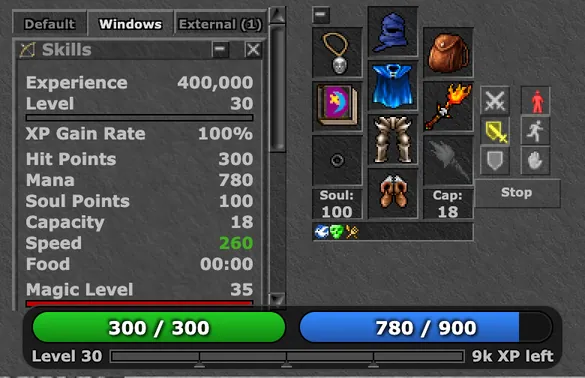
At the top are your equipment and your open windows, then your health and mana bars, the game, and at the bottom your controls.
- Movement pad (bottom left) to walk.
- Action buttons (bottom right): eight hotkeys F1 to F8, plus ✎ to edit them.
- Round buttons beside them: touch to loot (loots the corpses around you), P1 (switches between the hotkey presets P1, P2 and P3), the shield (Secure Mode) and the chat bubble.
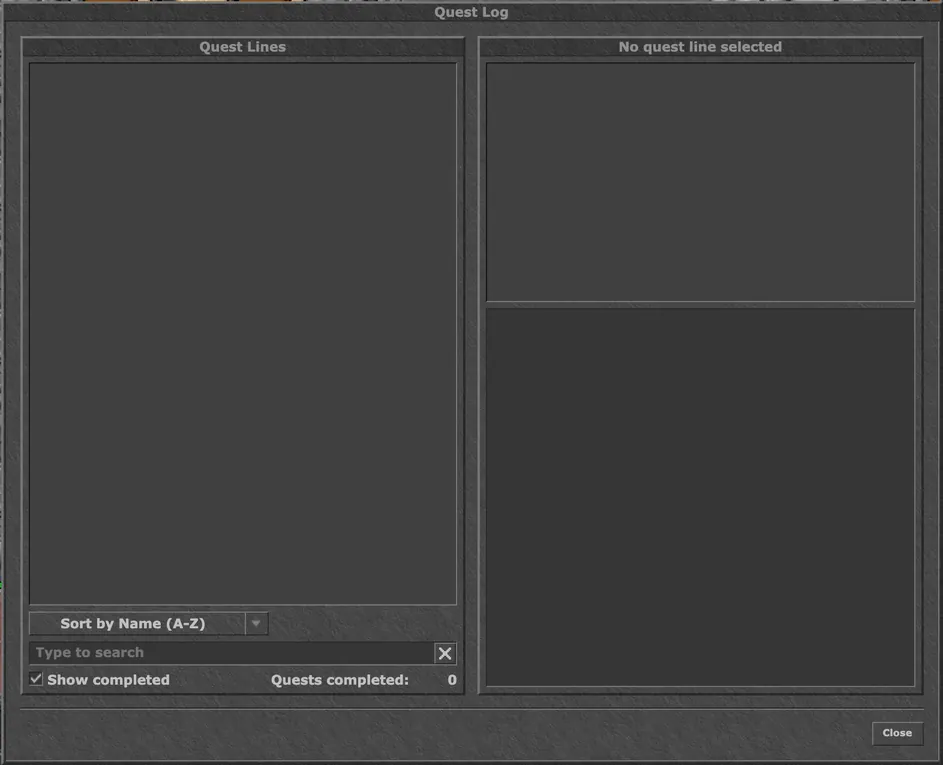
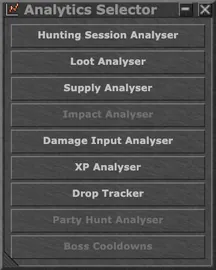
- Bottom bar: ⚙ Options, the minimap, the Store and buttons for Skills, Battle List, Party List, VIP List, Spell List, Quest Log, Analytics, Cyclopedia, Instant Banking and more. Swipe it sideways to see them all.
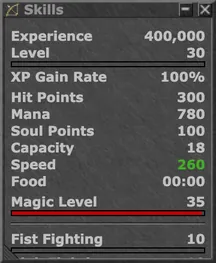
- Tap your level or a skill to see how many percent you have left to the next one.
Walking
You can walk with the pad, by tapping the map, or on the minimap.
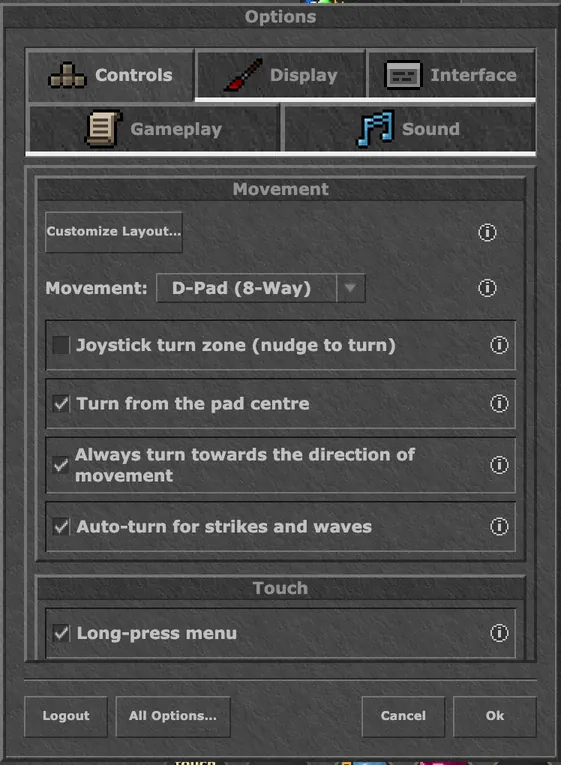
- Movement pad: hold it in a direction to keep walking. It walks in eight directions by default; under Options → Controls you can pick a four-way D-Pad or an Analog Stick instead.
- Turning: a touch that starts in the centre of the pad and slides turns your character without walking ("Turn from the pad centre", on by default).
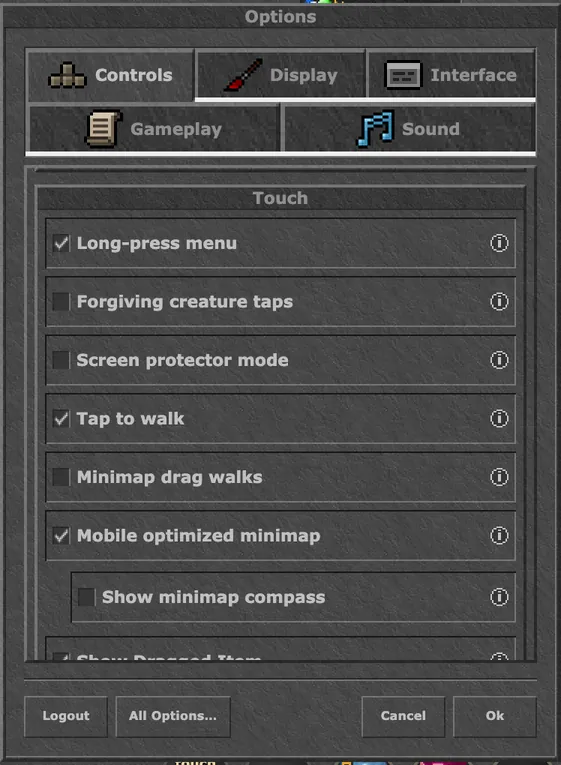
- Tap to walk: tap a free field on the map and your character walks there. If a field cannot be reached, you walk to the nearest free one. Switch it off under Options → Controls if you only want to walk with the pad.
- Minimap: tap it to walk to that spot, drag it to look around. With "Minimap drag walks" on, dragging shows a magnifier and walks you where you lift your finger.
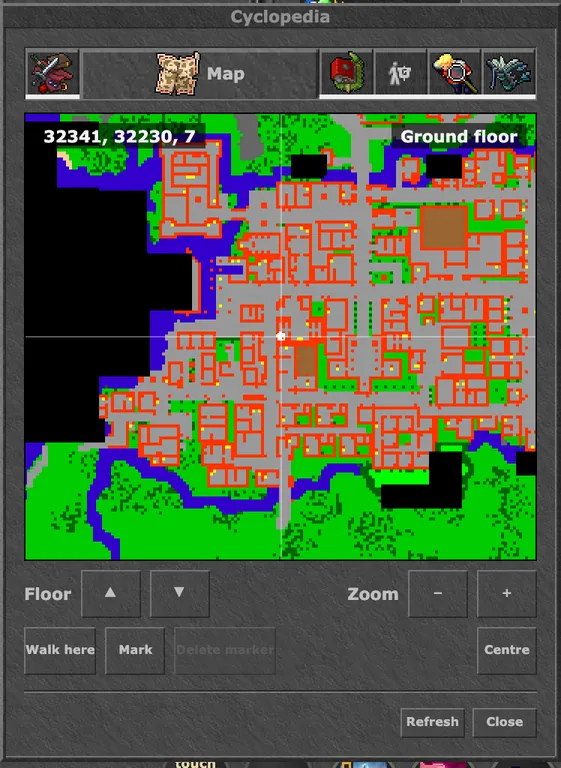
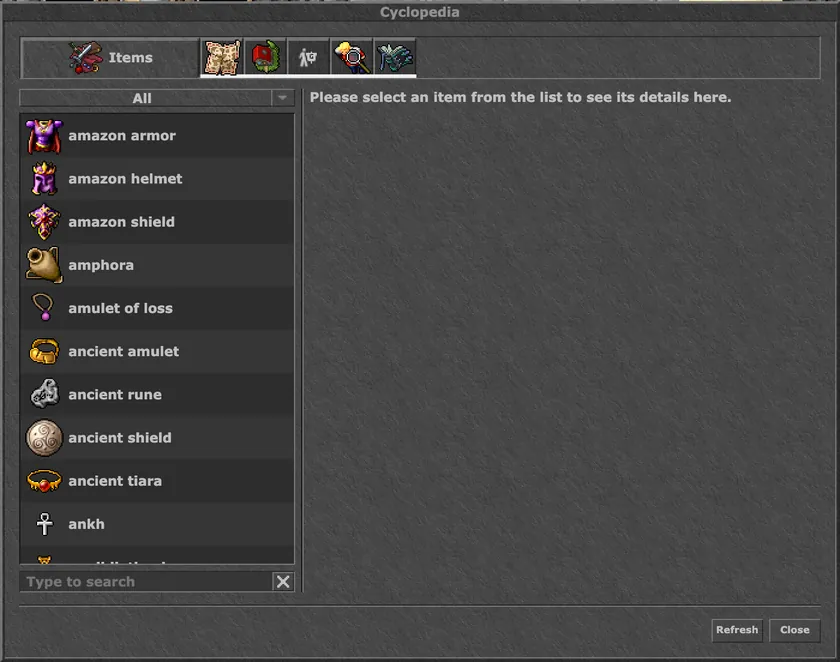
- World map: the Map tab of the Cyclopedia shows everything you have explored. Tap a spot and press Walk here.
Tapping, attacking and menus
A tap does what makes sense for the thing you tap.
- Tap a monster to attack it. Tap it again to stop attacking.
- Tap an NPC to say hi. A trader opens its shop by itself.
- Tap a corpse with loot to take the loot.
- Double-tap to use something: a door, a lever, a ladder, a sewer grate. Walk next to it (or onto it) first. A depot locker, a chest or a closed door right next to you also opens with a single tap.
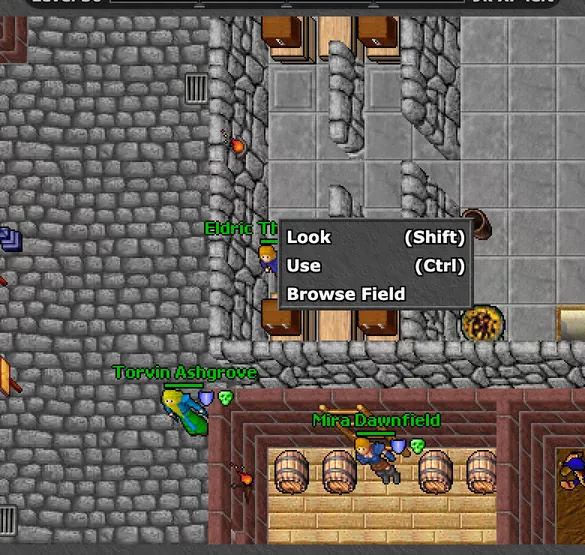
- Hold your finger on the map or on an item for a second to open its menu (Look, Use, Browse Field and more). "Long-press menu" under Options → Controls → Touch turns off this one-second hold only; the shorter holds in the chat and on action buttons always work.
- Two-finger tap: "Tap for menu" appears at the top; your next tap opens the menu of whatever you tap, like a right-click.
- Forgiving creature taps (off by default): a tap that just misses a monster still attacks it.
Action buttons and hotkeys
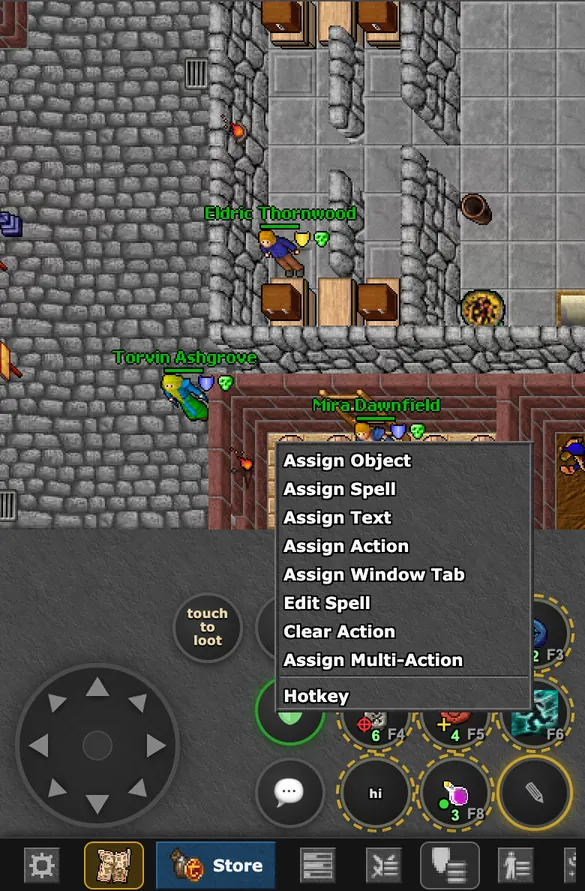
The round buttons on the right are your hotkeys. A tap fires the button; hold it to repeat. A tap on an empty button opens its menu.
- To set up a button, tap ✎. The buttons get a dashed ring; tap one to open its menu, then tap ✎ again when you are done.
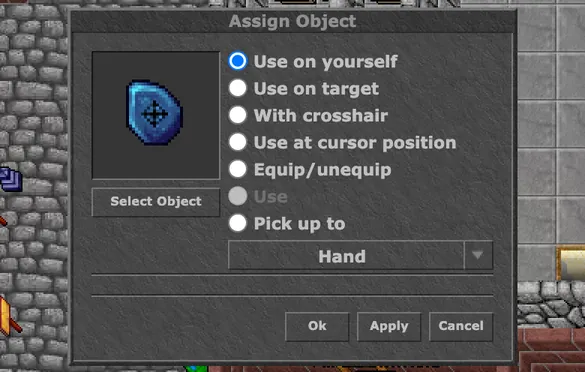
- Assign Object: a rune, fluid, food or tool. Choose how it is used: Use on yourself (green dot on the button), Use on target (red ring), With crosshair (yellow cross), Use at cursor position, Equip/unequip, or Pick up to your hand or backpack. The number on the button is how many you carry.
- With crosshair: after the press, "Tap target" appears; tap the field or creature to use it on. Tap the banner to cancel.
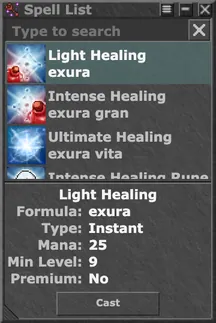
- Assign Spell: lists only the spells you have learnt, with their icons.
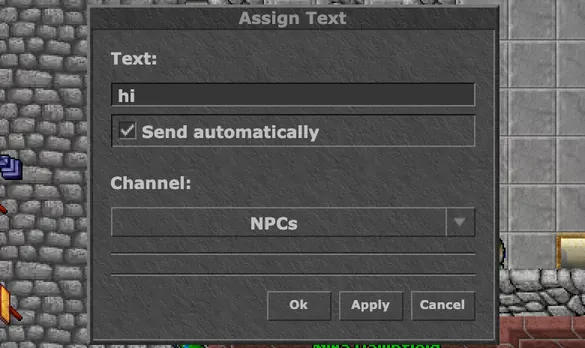
- Assign Text: any text, sent automatically or not, and the channel it goes to. "buy plate set" can always go to Trade, "hi" always to the NPC. The button shows its words.
- Assign Action: a game action, such as attacking the next target, Look, Tap for Menu, turning, opening a window or switching the hotkey preset.
- Assign Window Tab: jumps to one of your window tabs.
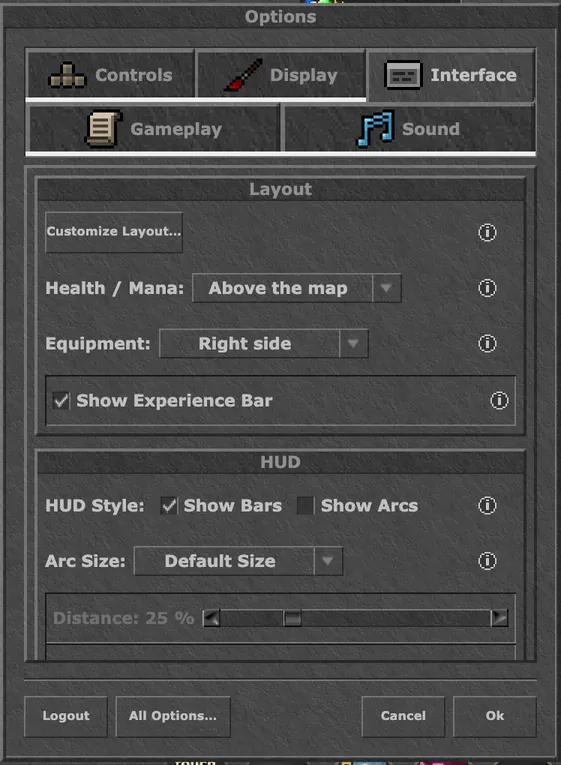
- P1, P2, P3: three sets of hotkeys. Tap the P button to switch. More buttons (slots 10 to 12, and three more) can be switched on under Options → Interface.
Multi-Action
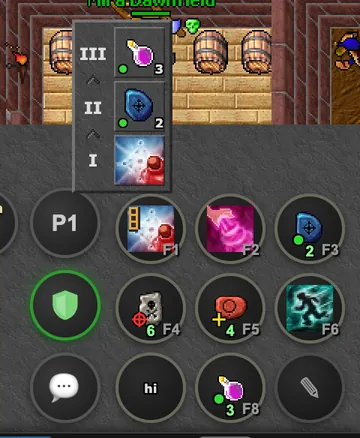
One button, up to three actions. Choose Assign Multi-Action in the button's menu and fill its three places. When you press the button it uses the first action that is ready.
- Example: a healing spell first, an ultimate healing rune second, a mana fluid third. While the spell is on cooldown, the same button uses the rune.
- Choose Edit Multi-Action in the button's menu to see its three actions and change one of them.
Containers and items
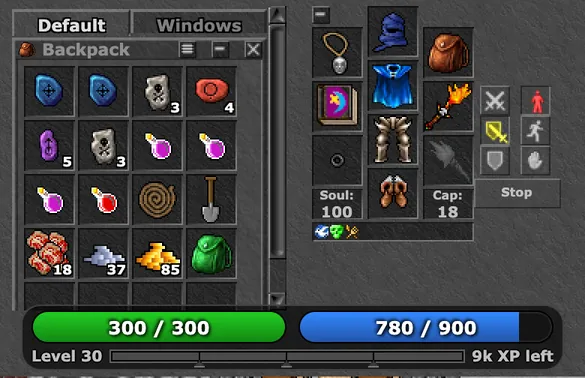
Tap your backpack to open it. Open containers sit in tabs at the top: Default for your own backpacks, Windows for windows such as Skills or the Battle List, and External for containers on the ground, corpses and Browse Field.
- Move an item: hold it and drag it. Drops snap to the nearest slot, and holding an item over a container tab opens that tab.
- Use an item: tap it. A backpack opens, food is eaten, and a worn ring or amulet is used at once. Double-tap an item to move it into your backpack.
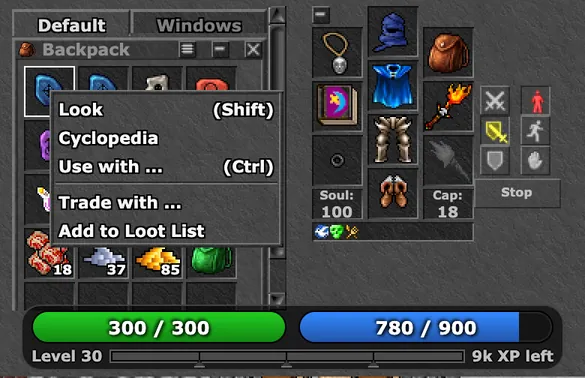
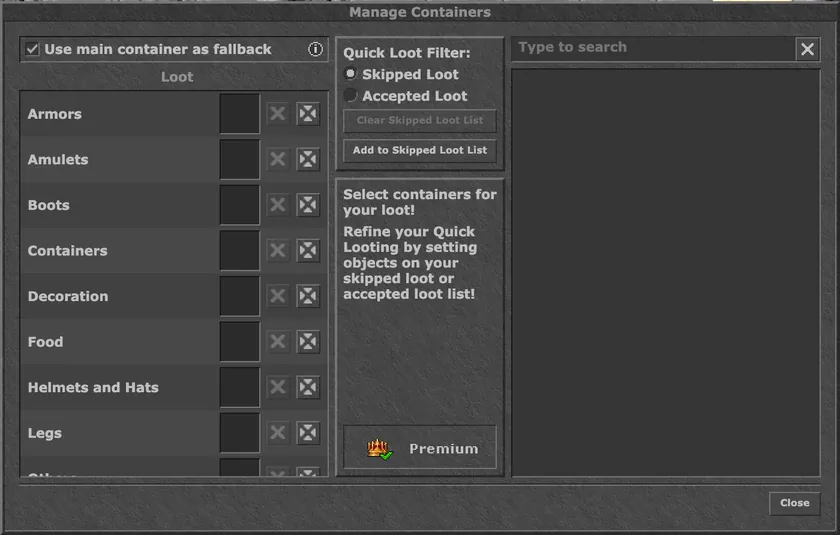
- Item menu: hold your finger on an item for Look, Cyclopedia, Use with, Trade with and Add to Loot List.
- Rings, amulets and runes show their time or charges left on the slot.
- Give a container its own name with "Edit Name" in its menu. Only you see it.
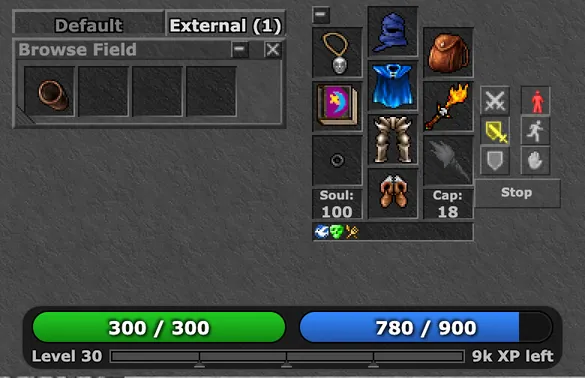
Browse Field
Hold your finger on a field and choose Browse Field to see everything lying on it, also what is under a corpse or a monster. It opens in the External tab.
- Drag items out of the window, or double-tap one to put it in your backpack.
- The window closes when you walk away from the field.
Chat and keyboard
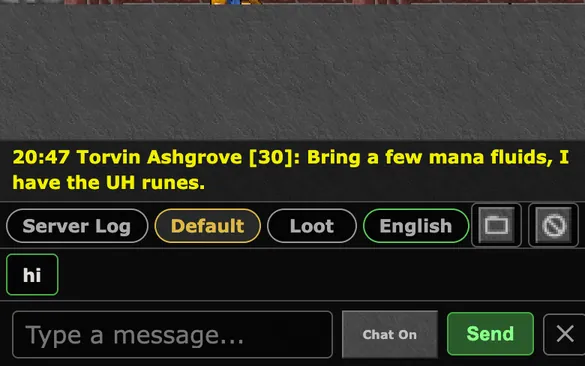
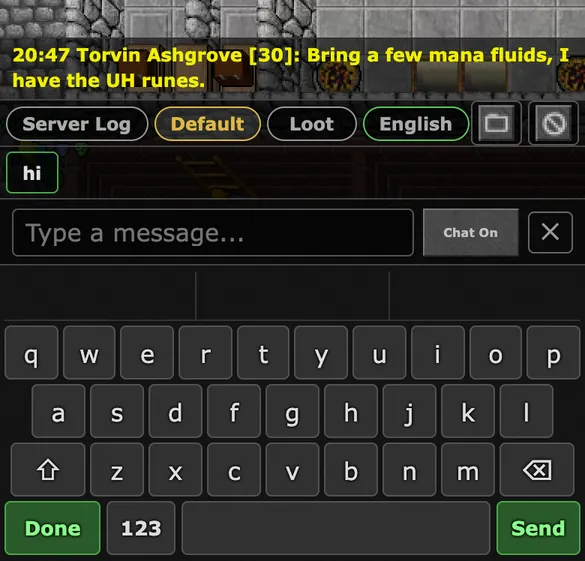
The chat bubble opens the chat: your channel tabs, the last messages and the line you type in.
- The buttons beside the tabs open the channel list (Game-Chat, Trade, Help, language channels, private channels) and your ignore list.
- Above the line are your text hotkeys as quick texts: one tap sends one.
- The game's own keyboard opens when you tap the line. Done closes it, Send sends. Under Options → Controls → Keyboard you can change its layout, size and opacity, switch the word suggestions off, or use your phone's keyboard instead.
- Double-tap a name in the chat to send that player a private message.
- Hold your finger on a tab for Close, Save Window and Clear Window, or on a message for Select Text.
Windows and the Party List
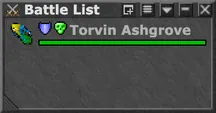
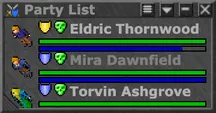
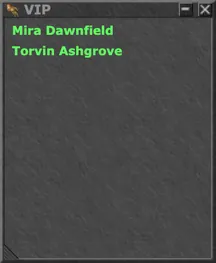
Skills, Battle List, Party List, VIP List, Spell List and the analysers open from the bottom bar into the Windows tab. Resize them by their edge; they keep their place.
- Party List: every member's health and mana, wherever they are, plus their summons. Party members also show on your minimap.
- Battle List: with Premium you can open extra lists, each with its own filters and sort order.
Depot, Supply Stash and Market
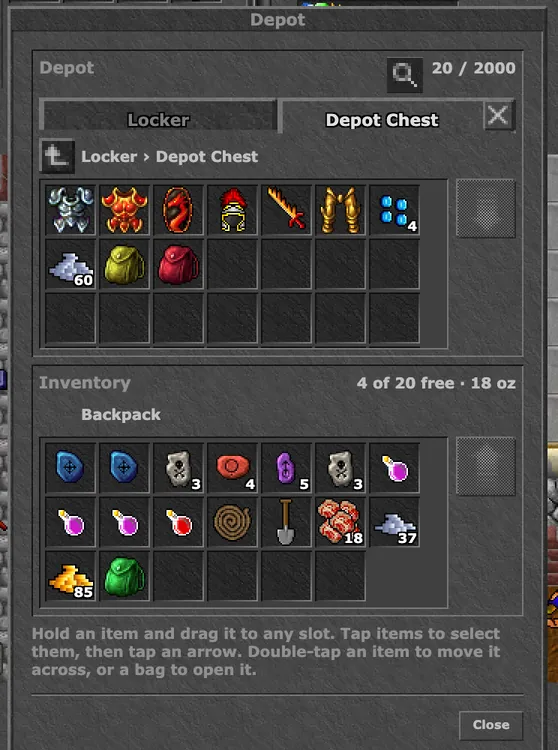
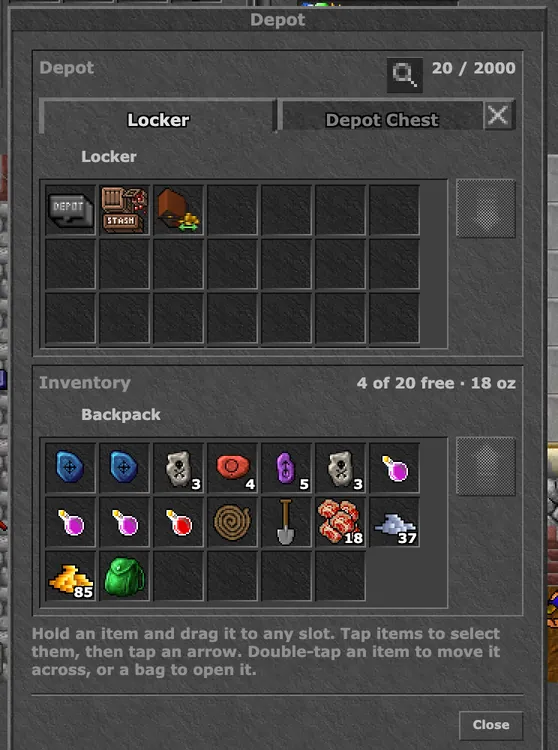
Tap a depot locker next to you. On a phone it opens the Depot screen: your depot on top, your backpack below.
- Moving items: drag them between the two, or double-tap an item to move it across. The magnifier searches your depot and your stash.
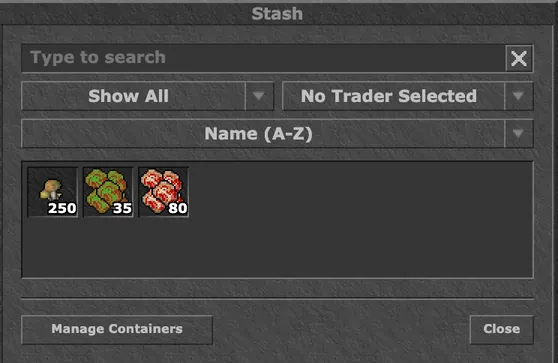
- Supply Stash (in the locker): stow stackable items and unused items, such as runes with full charges, and take them out again at any depot. Stowing needs Premium.
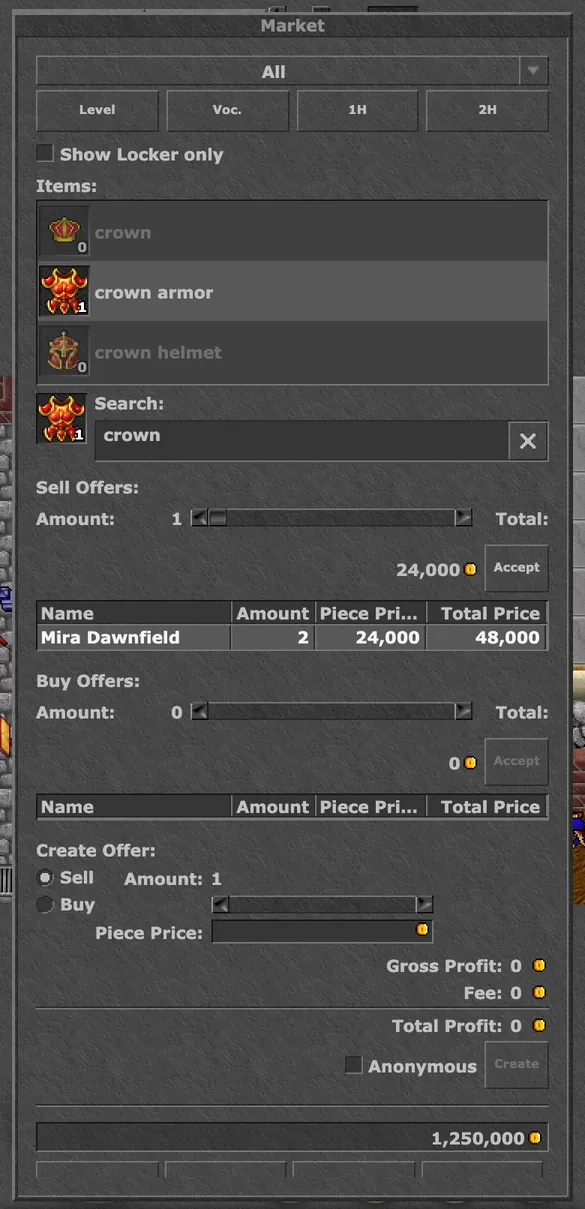
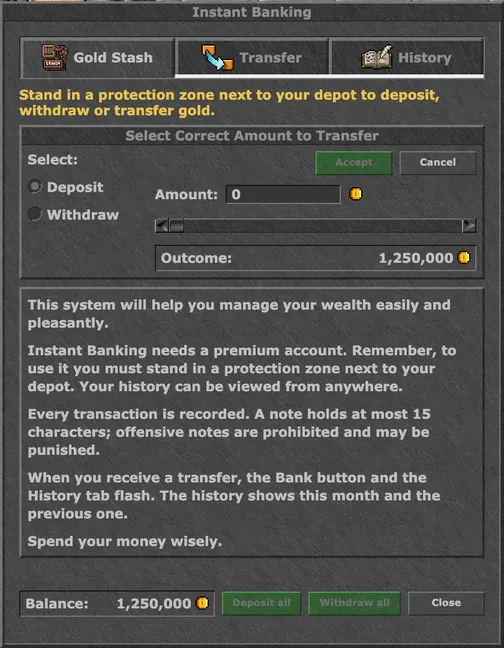
- Market (in the locker, in every town except Rookgaard): buy from and sell to the offers of other players. Premium players can also create their own offers. Money comes from and goes to your bank account.
The Cyclopedia
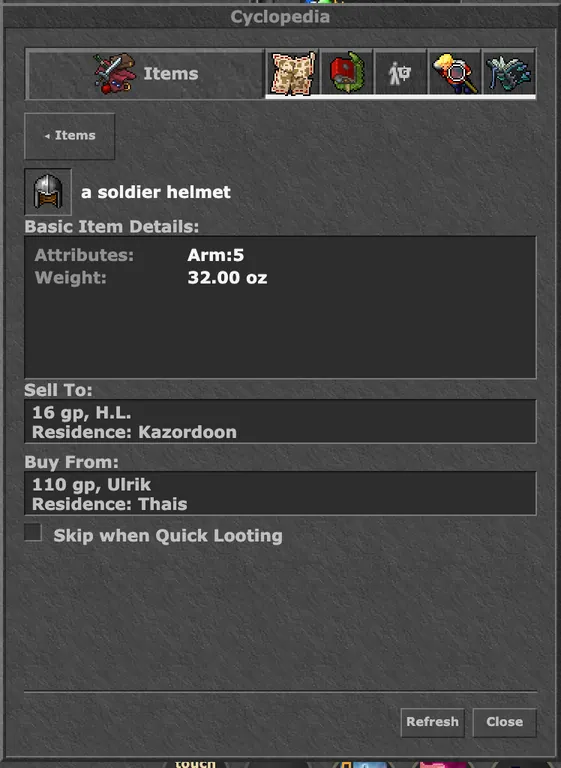
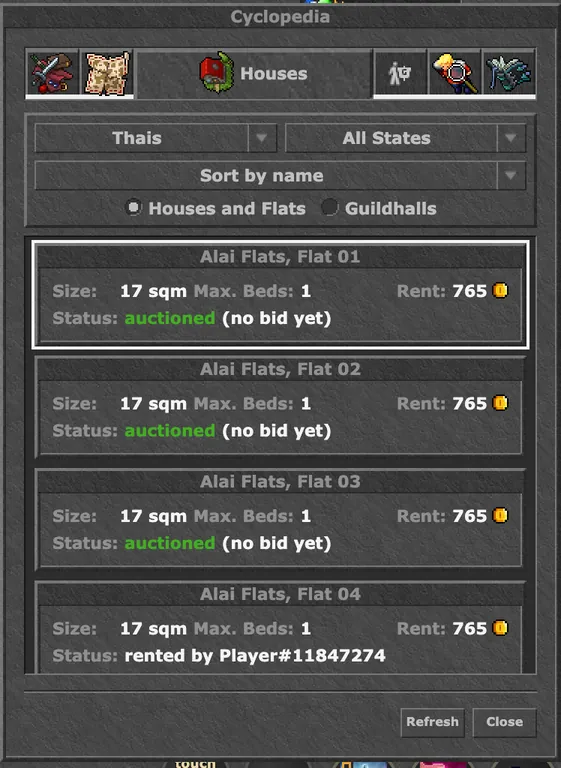
Open it with the Cyclopedia button in the bottom bar, or hold your finger on any item and choose Cyclopedia. It has six tabs.
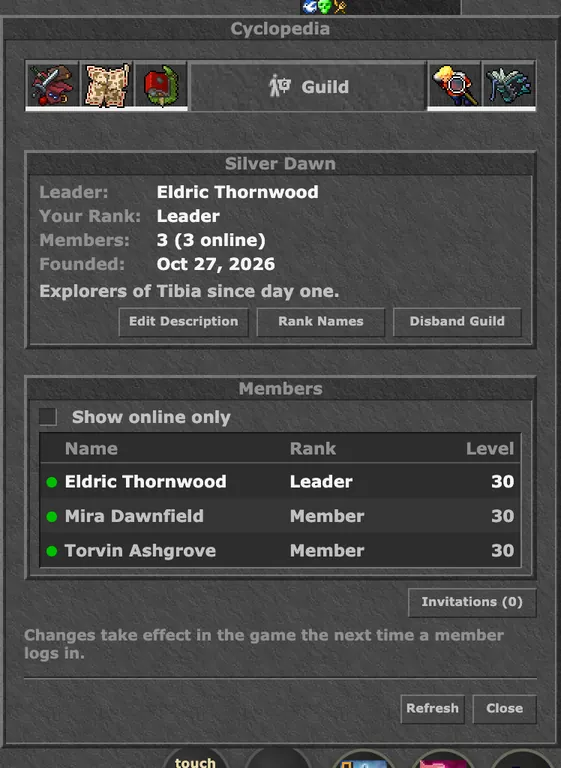
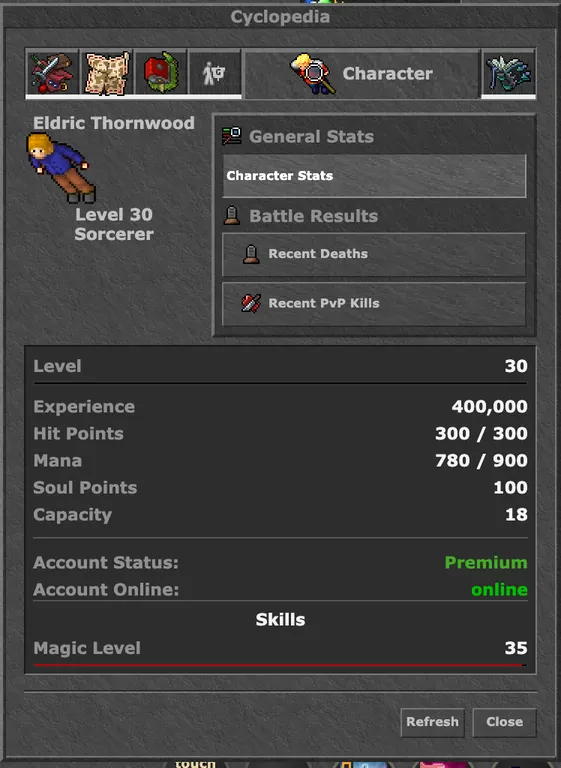
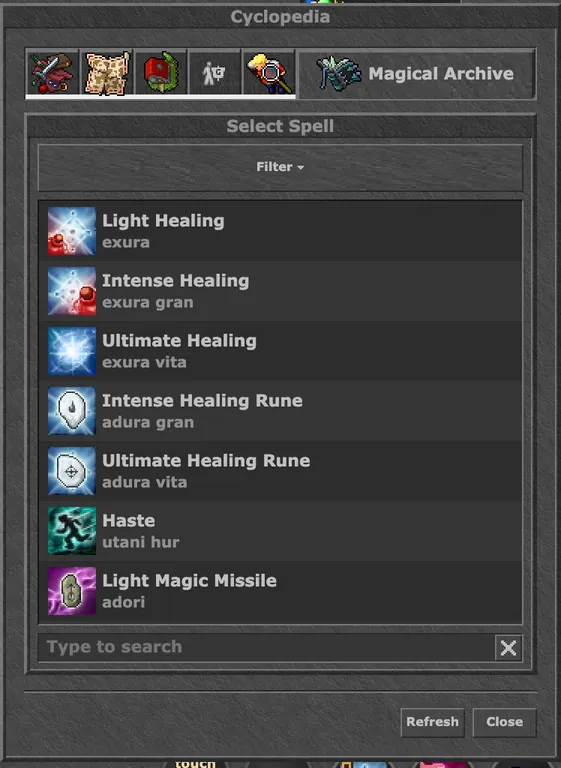
Customize Layout
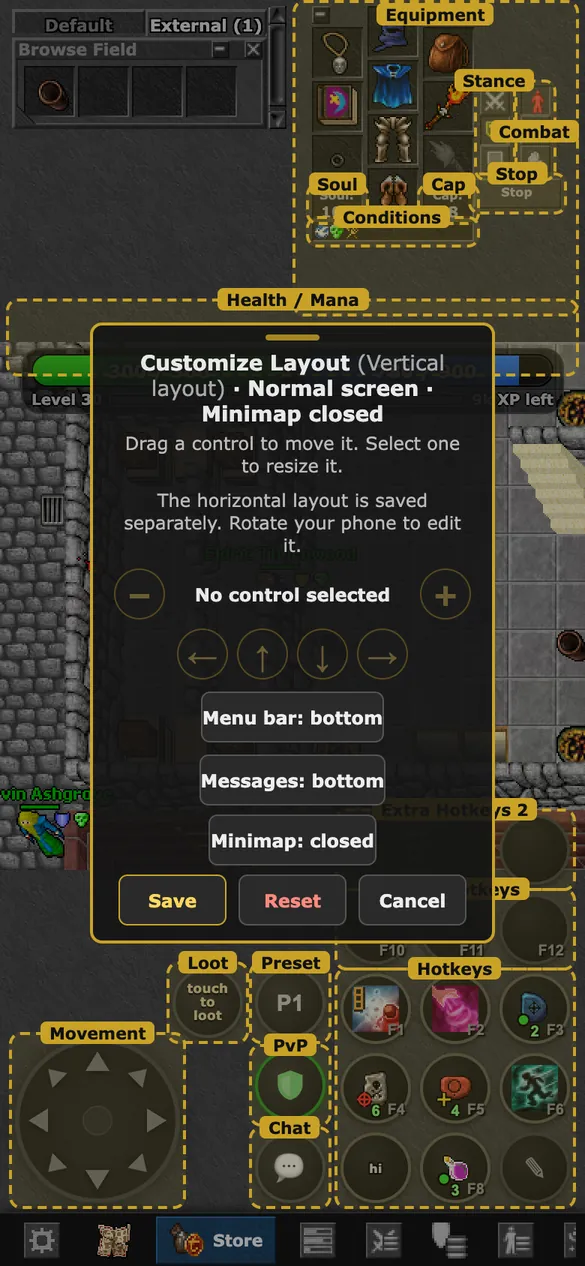
Put every control where your thumbs want it. Open Options (⚙) and press Customize Layout.
- Drag a control to move it. Select one and use − / + to make it smaller or bigger, or the arrows to move it a little.
- Choose whether the menu bar sits at the top or the bottom, and show your health and mana as bars across or upright at the side.
- Upright and sideways each keep their own layout. Save when you are done; Reset brings back the default.
Options
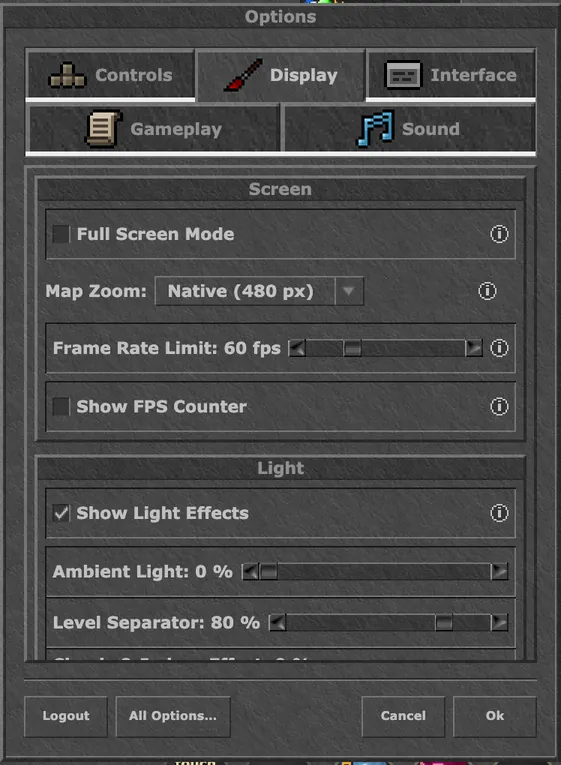
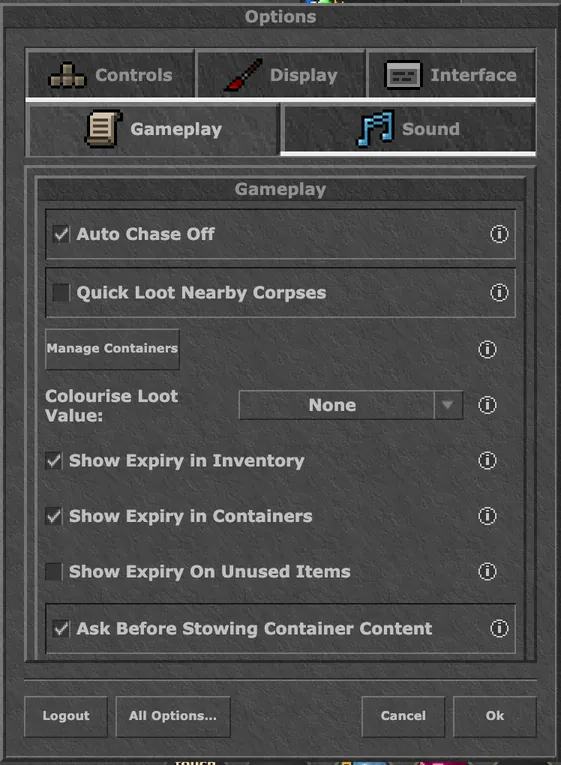
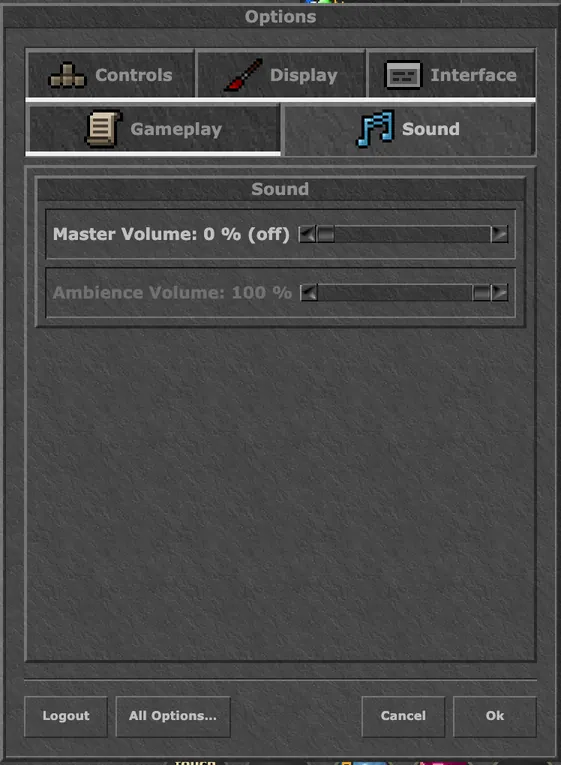
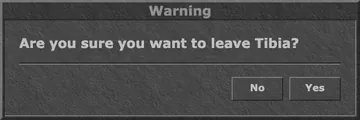
The ⚙ button opens the phone Options with five tabs. Every setting has an (i) that explains it. All Options… opens the full computer Options, and Logout is at the bottom.
Computer
On a computer you play with mouse and keyboard, like the original client. Every key can be changed under Options → Hotkeys.
The screen
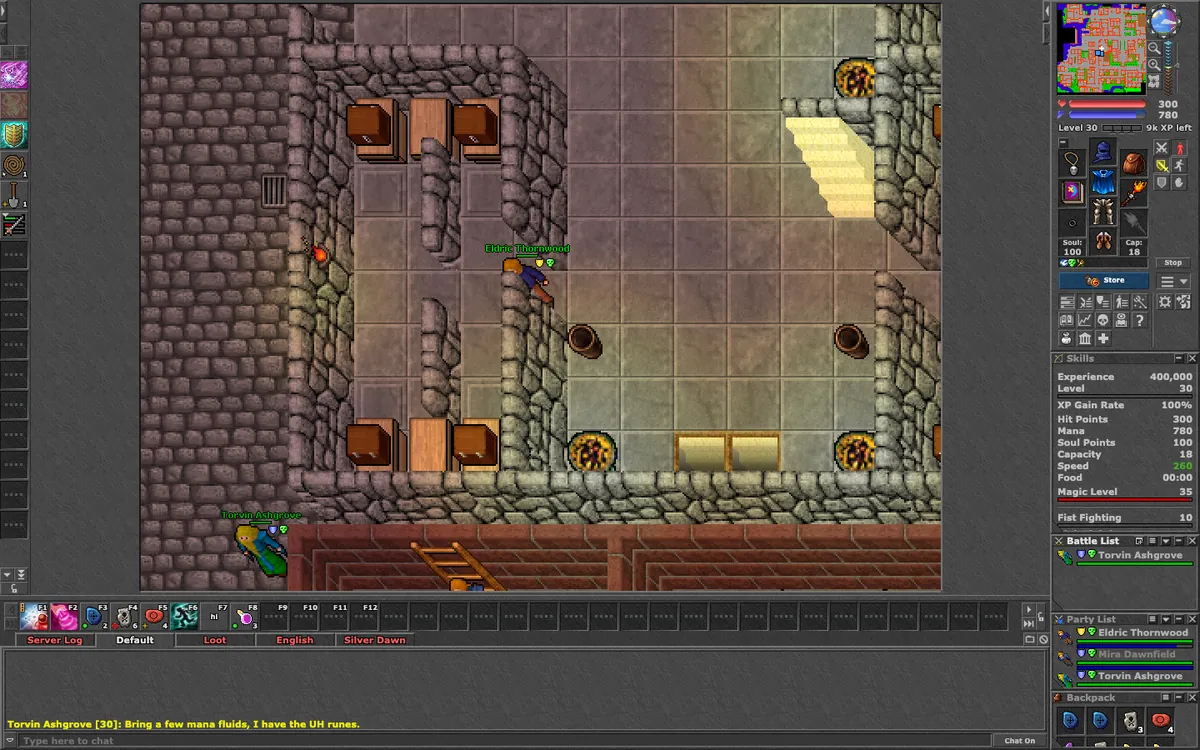
The game in the middle, the action bar and the chat below it, and the sidebar on the right with the minimap, your bars, equipment, buttons and windows.
- Drag the edge between the game and the chat to make the game bigger or smaller.
- Windows in the sidebar (Skills, Battle List, Party List, backpacks) can be moved, resized and minimised.
Mouse
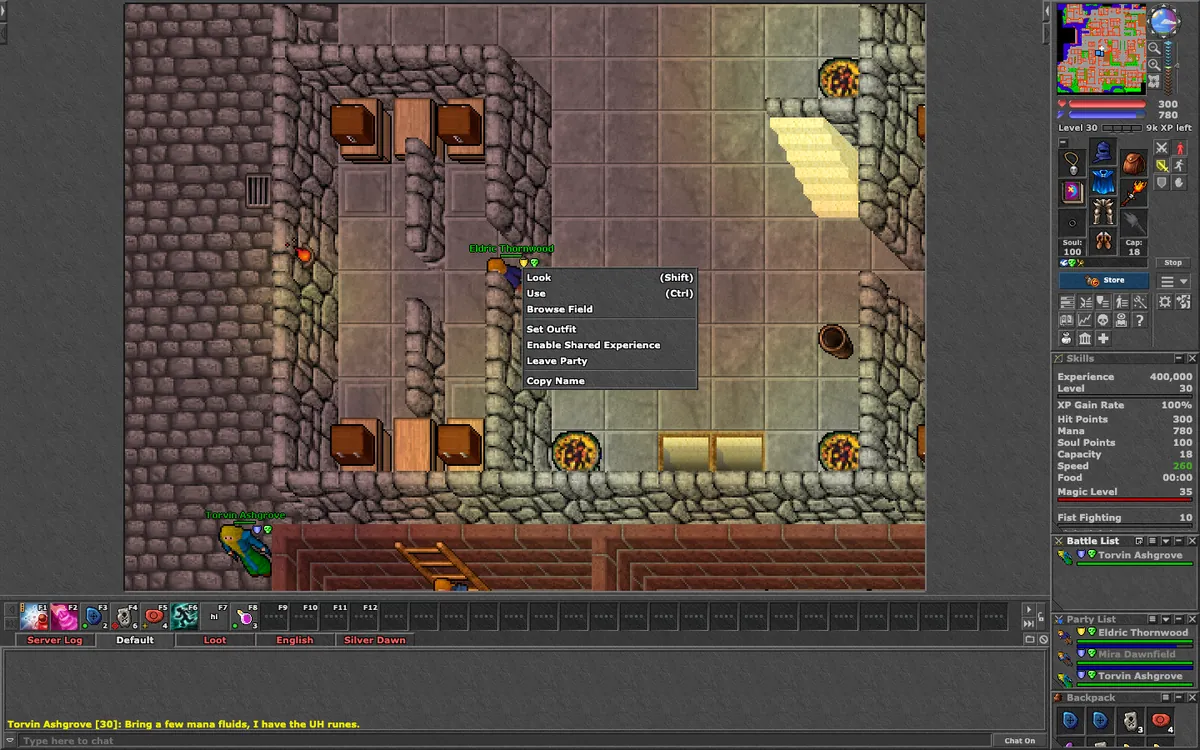
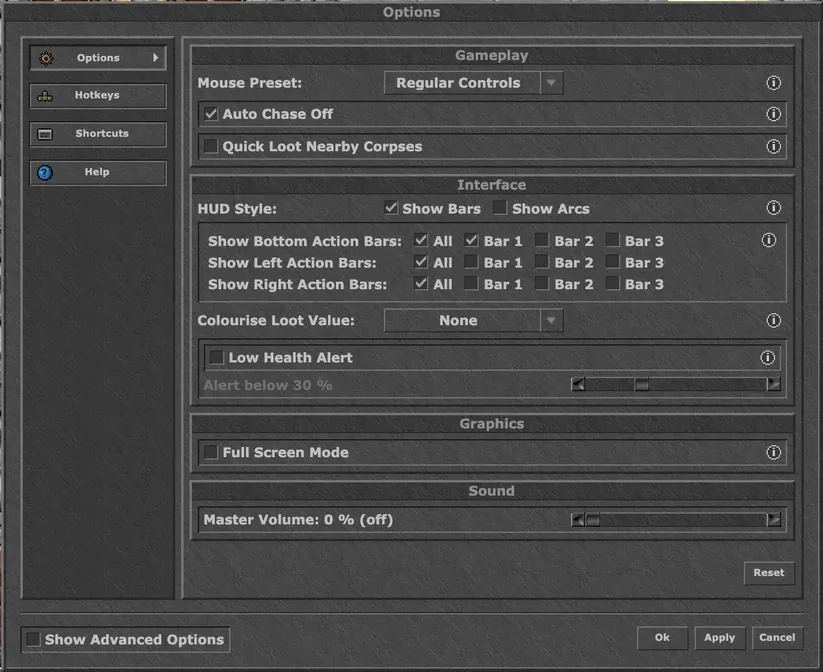
Choose one of three mouse presets under Options → Mouse Preset. Regular Controls is the default.
- Regular Controls: left-click walks. Shift + click looks, Ctrl + click uses or attacks, right-click opens the menu, Shift + right-click loots a corpse.
- Classic Controls: the 7.72 way. Left-click walks, right-click uses or attacks, left + right click together looks, Ctrl + click opens the menu.
- Left Smart-Click: left-click looks, uses, attacks or says hi to an NPC; right-click opens the menu; Alt + left-click loots.
- Clicking an NPC greets it and opens its trade.
- Dragging items: a plain drag of a stack asks how many; Ctrl + drag moves the whole stack. You can turn this around under Options → Controls.
- Minimap: drag it to look around, use the mouse wheel to zoom, click to walk.
Keyboard
The keyboard has two modes. Switch with the Chat On / Chat Off button under the chat.
- Chat Off: W, A, S, D walk (Q, E, Z, C diagonally), Space attacks the next target and Enter opens the chat line for one message.
- Chat On: everything you type goes into the chat. Walk with the arrow keys or the number pad.
- Both modes: Ctrl + arrow key turns, Esc stops, F1 to F12 are your hotkeys, Tab switches channel.
- Shortcuts: Ctrl + S skills, Ctrl + B battle list, Ctrl + P VIP list, Ctrl + J quest log, Ctrl + O channel list, Ctrl + E closes a channel, Ctrl + K hotkey options, Ctrl + F full screen, Ctrl + L or Ctrl + Q logs out.
- Alt + Q loots the corpses around you. Alt + arrow keys scroll the minimap, Alt + Page Up / Page Down change its floor.
Action bars
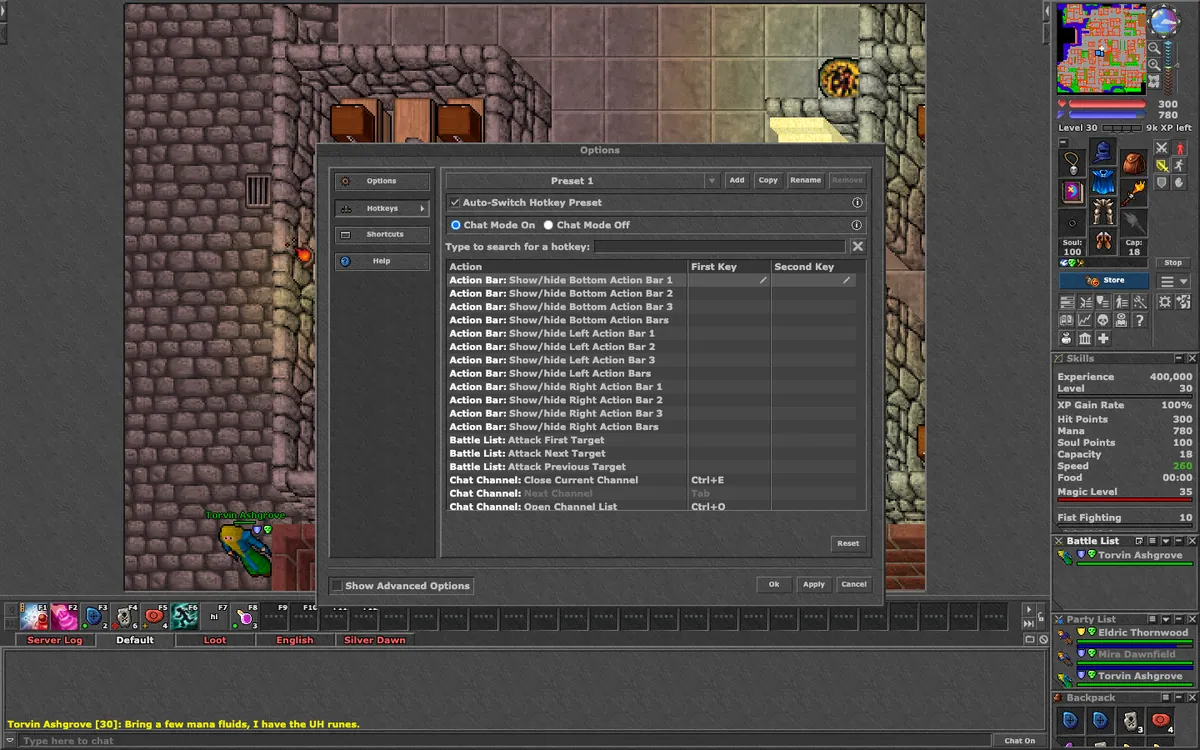
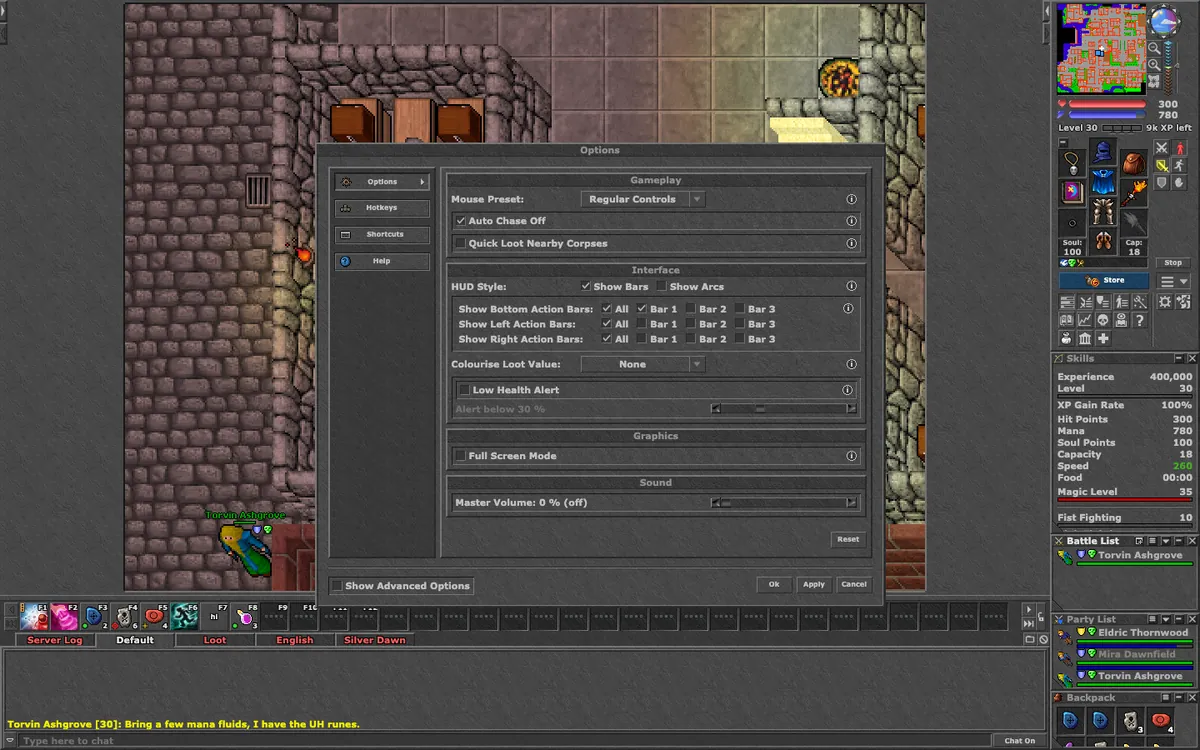
The bar under the game holds your hotkeys, F1 to F12 and more. Under Options you can show up to three bottom, three left and three right bars.
- Drag a spell from the Spell List or an item from your backpack onto a button, or right-click a button for Assign Object, Assign Spell, Assign Text, Assign Action and Assign Multi-Action. They work as on a phone (see above).
- Drag buttons from one bar to another. Give any button a key under Options → Hotkeys.
- Object buttons show their use mode in the corner: a green dot on yourself, a red ring on target, a yellow cross with crosshair.
Windows, Cyclopedia and Options
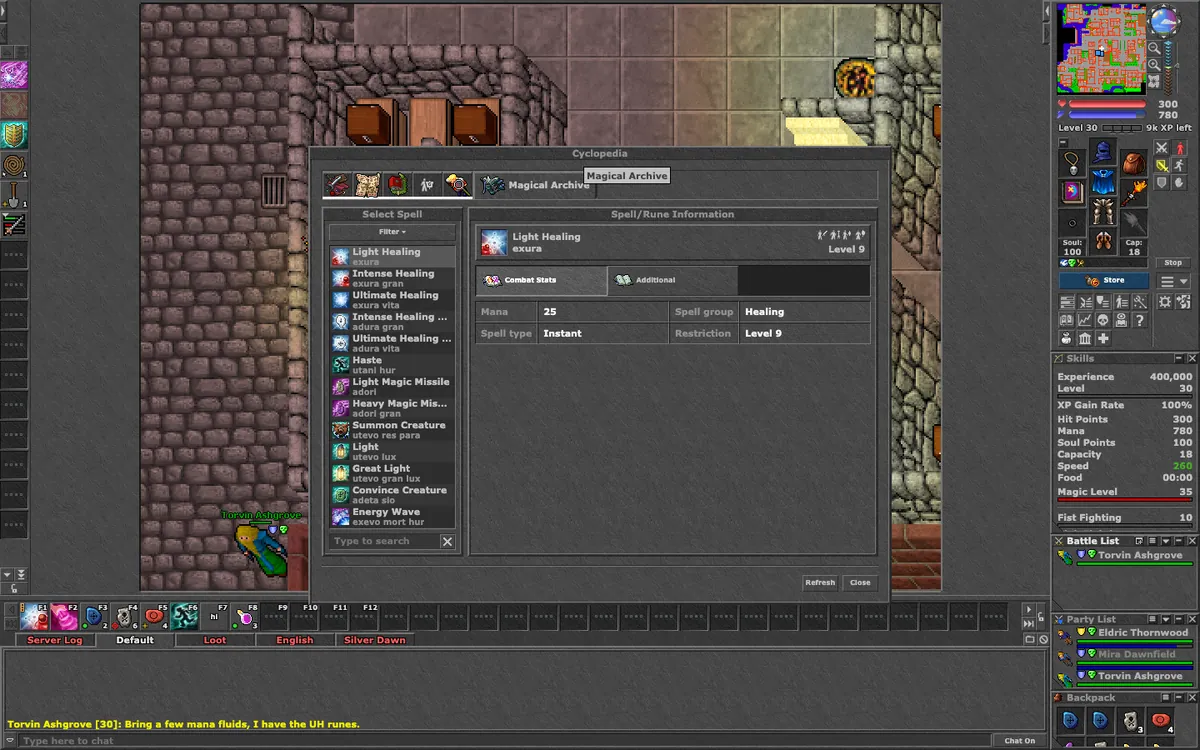
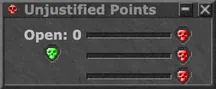
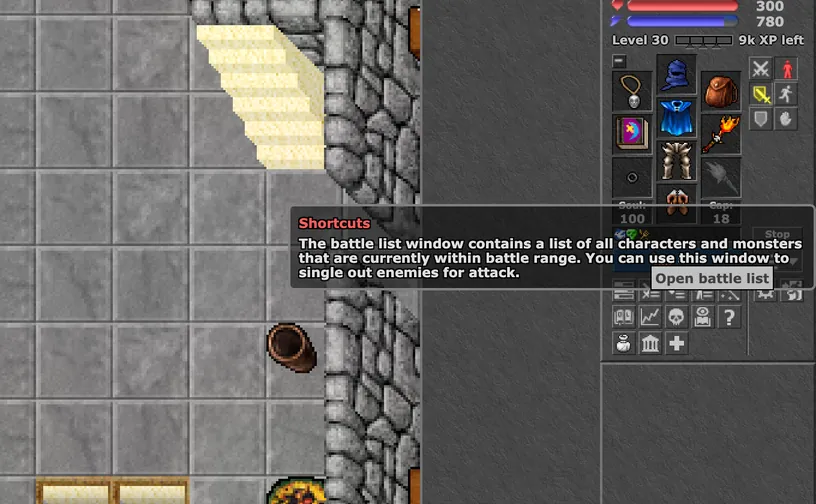
The buttons under your equipment open the Store, Skills, Battle List, Party List, VIP List, Spell List, Quest Log, Analytics, the Cyclopedia, Instant Banking and more.
- The Cyclopedia, depot, Supply Stash and Market work the same as on a phone; on a computer the depot search is a sidebar window.
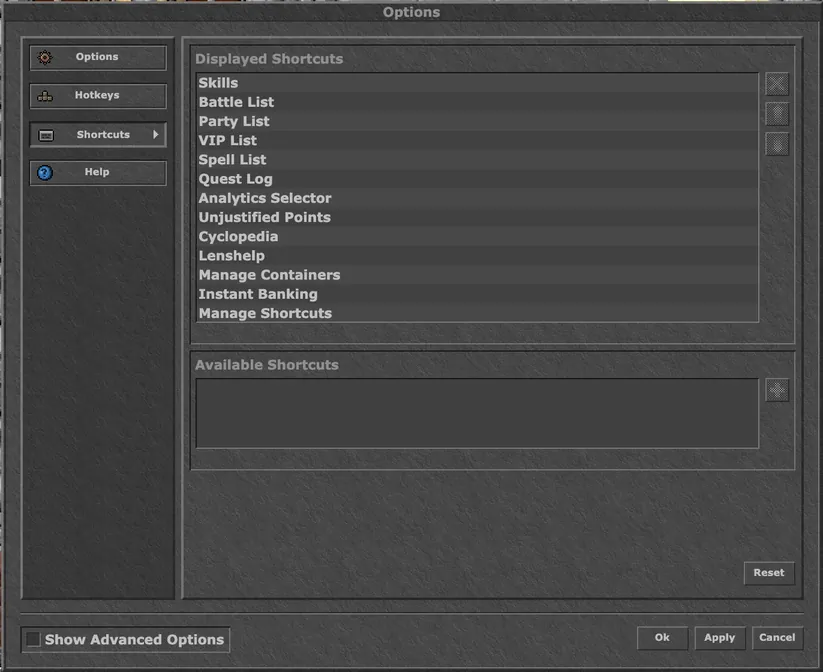
- Options has four pages: Options, Hotkeys, Shortcuts and Help. Tick Show Advanced Options to see every setting.
Gesture reference
Every touch gesture the phone and tablet client understands, by where you use it. The last column names the setting that changes it (under ⚙ Options → Controls unless it says otherwise).
Game map
| Gesture | What it does | Setting |
|---|---|---|
| Tap a monster | Attacks it. Tap it again to stop attacking. | Forgiving creature taps (off): also attacks when the tap just misses |
| Tap an NPC | Says hi; a trader opens its shop. | — |
| Tap a corpse | Takes the loot. | — |
| Tap a free field | Walks there, or to the nearest free field. | Tap to walk (on) |
| Tap a locker, chest or closed door next to you | Opens it. | — |
| Double-tap | Uses what you tap: a door, lever, ladder or grate (walk next to it or onto it first). | — |
| Double-tap an item on another field | Moves it into your backpack. | — |
| Double-tap your own field | Opens the outfit window. | — |
| Hold 1 second | Opens the menu of what is under your finger: Look, Use, Browse Field and more. | Long-press menu (on) |
| Hold an item and drag | Picks the item up and moves it; the field it will land on is highlighted. | Screen protector mode (off): picks up sooner and allows more finger movement · Show Dragged Item (on) |
| Drop on fire or a trash can | Asks before the item is thrown away. | — |
| Two-finger tap | "Tap for menu" appears; your next tap opens the menu of what you tap, like a right-click. It lapses after 5 seconds. | — |
Movement pad
| Gesture | What it does | Setting |
|---|---|---|
| Hold in a direction | Walks and keeps walking; slide your thumb to change direction. | Movement: D-Pad, D-Pad (8-Way) (default) or Analog Stick |
| Start in the centre and slide | Turns your character without walking. | Turn from the pad centre (on) |
| Analog Stick: light push | Turns on the spot instead of walking. | Joystick turn zone (off), Analog Stick only |
| Second finger while walking | Your other fingers still work: tap buttons, scroll containers and the chat, use the minimap. | — |
Action buttons (hotkeys)
| Gesture | What it does | Setting |
|---|---|---|
| Tap | Uses the button. Runes, potions and spells fire the moment you touch them. | — |
| Hold a rune, potion or spell button | Repeats it: first after 0.4 seconds, then every 0.25 seconds. | — |
| Hold any other button (0.45 s) | Opens its menu (Assign Object, Spell, Text, Action…) without using it. | — |
| Tap an empty button | Opens its menu. | — |
| Drag a button onto another | Swaps the two buttons. | — |
| Tap ✎, then tap a button | Edit mode: opens the menu of any button. Tap ✎ again to finish. | — |
| Tap P1 | Switches to the next hotkey preset (P1, P2, P3). | — |
Containers, equipment and windows
| Gesture | What it does | Setting |
|---|---|---|
| Tap an item | Uses it: a backpack opens, food is eaten, a worn ring or amulet is used. | — |
| Double-tap an item | Moves it into your backpack (in the depot and Browse Field: across to the other side). | — |
| Hold an item and drag | Moves it. The drop snaps to the nearest slot. | Show Dragged Item (on) |
| Drag over a container tab | Holding the item there for a moment opens that tab. | — |
| Hold 1 second | Opens the item menu: Look, Cyclopedia, Use with, Trade with, Add to Loot List. | Long-press menu (on) |
| Swipe a window or list | Scrolls it, also with a second finger while your thumb is on the pad. | — |
| Tap your level or a skill | Shows how many percent you have left to the next one. | — |
| Tap a creature in the Battle List | Attacks it; tap again to stop. | — |
Chat and keyboard
| Gesture | What it does | Setting |
|---|---|---|
| Tap a quick text | Sends that text hotkey. | — |
| Double-tap a message | Opens a private chat with the player who wrote it. | All Options → Console: Double-Click a Name to Message Them (on for phones) |
| Hold a message (0.45 s) | Opens its menu: Copy Name, Copy Message, Message to, Ignore, Add to VIP List, Select Text. | — |
| Hold a channel tab | Close, Save Window and Clear Window. | — |
| Tap the name in a party invitation | Offers to join that party. | — |
| Keyboard: tap ⇧ / double-tap ⇧ | One capital letter / caps lock. | Keyboard: Layout, Customize Keyboard, Word suggestions, Use device keyboard instead |
| Keyboard: hold ⌫ | Keeps deleting, faster after 0.4 seconds. | — |
| Keyboard: hold a letter | Shows its accented letters; slide to one and lift. | — |
| Keyboard: slide along the space bar | Moves the cursor in the text. | — |
Minimap and Cyclopedia map
| Gesture | What it does | Setting |
|---|---|---|
| Tap the minimap | Walks to that spot. | — |
| Drag the minimap | Moves the map to look around. | Minimap drag walks (off): shows a magnifier and walks where you lift your finger |
| Hold the minimap (0.5 s) | Opens its menu, for example to set a mark. | — |
| Cyclopedia map: drag / tap | Moves the map / selects a field for Walk here and Mark. | — |
| Cyclopedia map: pinch | Zooms in and out. | — |
Customize Layout
| Gesture | What it does | Setting |
|---|---|---|
| Drag a control | Moves it. | — |
| Tap a control | Selects it, so − / + resize it and the arrows nudge it. | — |
Menu icons
Every button in the client's menus and what it opens. On a computer they sit in the sidebar on the right; on a phone the same shortcut buttons are in the bottom bar (swipe it sideways to see them all).
Shortcut buttons
Under your equipment on a computer, in the bottom bar on a phone. Manage Shortcuts (+) chooses which of them are shown.

















Fighting buttons
Beside your equipment, on a computer and on a phone.


Minimap buttons
Beside the minimap. On a phone they sit in one row under it, with floor up and down buttons.


Chat buttons
Around the chat on a computer. The phone chat has the channel list and ignore buttons as well.




Phone-only buttons
The round buttons beside your hotkeys and two buttons of the bottom bar.


